Tools
Add a loyalty card to your phone wallet
There is usually no Add-to-Wallet button because a wallet pass has to be created and signed by whoever issued the card, and most coffee shops, gyms and supermarkets never made one. What works instead is turning the card into a pass yourself: on iPhone, a signed pass that lands in Apple Wallet; on Android, an app that stores the barcode and shows it full-screen. The detail that decides whether the till reads it is the barcode format, not the number.
Why the button is missing
Apple Wallet does not store pictures of cards. It stores .pkpass files:
small signed bundles containing the barcode payload, its format, the display
fields and a certificate proving who made it. The signature is the point. It is
what stops anybody generating themselves a boarding pass.
The consequence is straightforward. If your local chain never registered as a pass issuer, there is no pass to add, and no setting in Apple Wallet will change that. Google Wallet works the same way for partner loyalty programmes.
So the practical question is not “how do I add this card” but “who will make a pass out of it”.
What a scanner actually needs
This is the part missing from most guides, and it is the part that decides whether you stand at the till re-opening an app.
The right format. A barcode is not a number; it is a number encoded in a specific symbology. Long striped codes on loyalty cards are usually Code 128 or Code 39, retail product codes are EAN-13, square ones are QR or Aztec. The same digits in the wrong symbology produce a barcode that looks plausible and scans as nothing.
Enough size and contrast. A pass shows the code alone, large, in black on white. A photo of the whole card shows a two-centimetre barcode with a logo next to it, at whatever brightness the phone happened to be on.
A screen the scanner can read. Camera-based scanners, the flat glass at most supermarket tills, read screens fine. Handheld laser scanners cannot read a screen at all at any brightness, because they work on reflected laser light. When a member of staff says “it doesn’t work on phones”, this is usually why, and it is not something an app can fix.
On iPhone
- Check whether the shop already publishes a pass. Their own app, or the bottom of an email receipt, is where an Add to Apple Wallet button lives if one exists. This is always the best option — a real pass updates its balance.
- Otherwise, generate one. An app that reads the card and produces a
signed
.pkpassputs the card in Wallet properly: on the lock screen, in the double-click list, sorted with everything else. - Check the barcode against the card the first time, before you rely on it. Compare the digits printed under the barcode with the digits under the generated one.
On Android
Google Wallet takes loyalty cards from partner programmes, and there are many fewer of those than there are loyalty cards. For everything else, the thing that works at a till is an app that stores the code and displays it full-screen with the brightness raised.
That is less elegant than a system wallet, and functionally identical at the moment of scanning. What you lose is lock-screen access and automatic surfacing; what you keep is a code that scans.
What a generated pass will not do
Worth knowing before you replace a stack of plastic with a phone screen.
It will not update its own balance. A real pass issued by the shop can be pushed a new points total, a new expiry, a new offer. A pass generated from a photo is a snapshot of the barcode: the code keeps working, because the code is just your account number, but the points figure printed on it is frozen at the moment you made it. For a loyalty card that is usually fine — the till looks up the balance from the number. For anything with a changing value, it is not.
It will not survive the card being reissued. New card, new number, new pass.
It is not a payment card. Neither wallet will let you generate one, and nothing that requires the chip or the magnetic stripe can be reproduced from a photograph of the front. That boundary is deliberate on both platforms, and it is the same instinct behind everything on the Tools page: do the one thing properly rather than the adjacent thing badly.
It may not be welcome everywhere. Some loyalty programmes state in their terms that the card is theirs and may not be copied. In practice nobody objects to a barcode on a screen, but a museum pass or a transit ticket with a named holder is a different matter from a coffee stamp card.
Getting the number in without typing it
Typing a sixteen-digit number from a worn card is where this goes wrong. The faster path is a photo: point the camera at the card, and let the app read both the digits and the symbology off the printed barcode.
AI Wallet Pass is what we built for that step. You photograph the card, it extracts the number and the barcode format, and it produces a signed pass for Apple Wallet on iOS or stores it in its own wallet on Android.
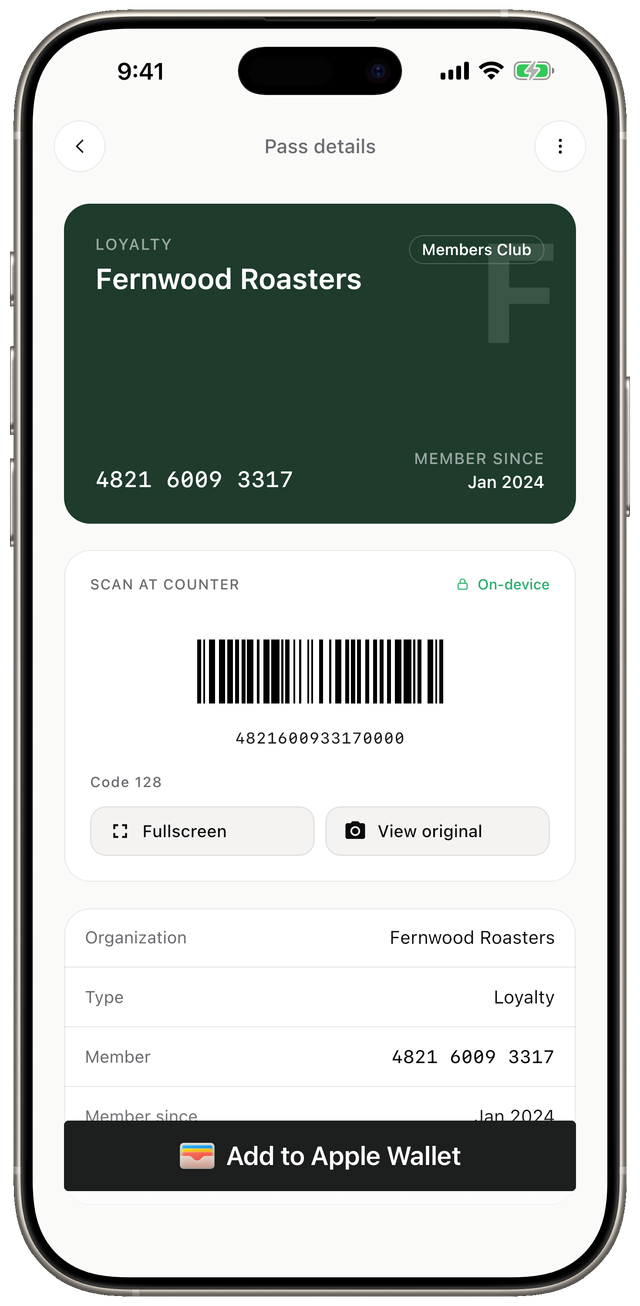
One detail worth stating, because it is the thing to check in any app of this kind: reading a card requires a server, since the extraction model does not run on the phone. The barcode payload itself stays on the device — the extraction service only ever receives a redacted photo, and the number never goes to it. The narrow exception is the signing call, which needs the payload for as long as it takes to assemble the signed pass and never writes it down. That is a design constraint in the API rather than a promise in a privacy policy, which is the difference worth asking about.
Three cards a month are free, there is no subscription, and the card on the Tools page says so before you install anything.
Scanning is the one thing the app cannot do offline, and its card says so — the semantic extraction is a server call. The barcode decode itself happens on the device, which is why the payload never needs to travel; see offline games for kids for how loosely the word “offline” gets used on a listing generally. The rest of the utilities we make are on the Tools page; if you are weighing up how an app is paid for before installing it, what a puzzle game subscription costs sets out the three models and how to tell them apart on a listing.
Frequently asked questions
- Why can't I add my loyalty card to Apple Wallet directly?
- Because a wallet pass has to be created and cryptographically signed by whoever issues it, and most shops never made one. Apple Wallet has no way to accept a card that no issuer ever published.
- Will a photo of my card work at the till?
- Sometimes, and unreliably. Handheld laser scanners cannot read a screen at all; camera-based scanners usually can, if the barcode is large, sharp and at full brightness. A photo of the whole card is rarely any of those.
- Does Android have an equivalent of Apple Wallet?
- Google Wallet accepts loyalty cards, but only from partners that publish them. For anything else, an app that stores the barcode and shows it full-screen is what actually works at a till.
- Which barcode format do I need?
- Whatever is printed on the card. The common ones are Code 128 and Code 39 for the long striped codes, EAN-13 for the retail-product style, and QR or Aztec for square codes. A number typed into the wrong format will not scan.
- Is the card number sent anywhere?
- That depends on the app, and it is the one thing worth checking. Reading the card can require a server; storing and displaying it does not. The barcode payload should never need to leave the device once it exists.
